
Why it starts with your library
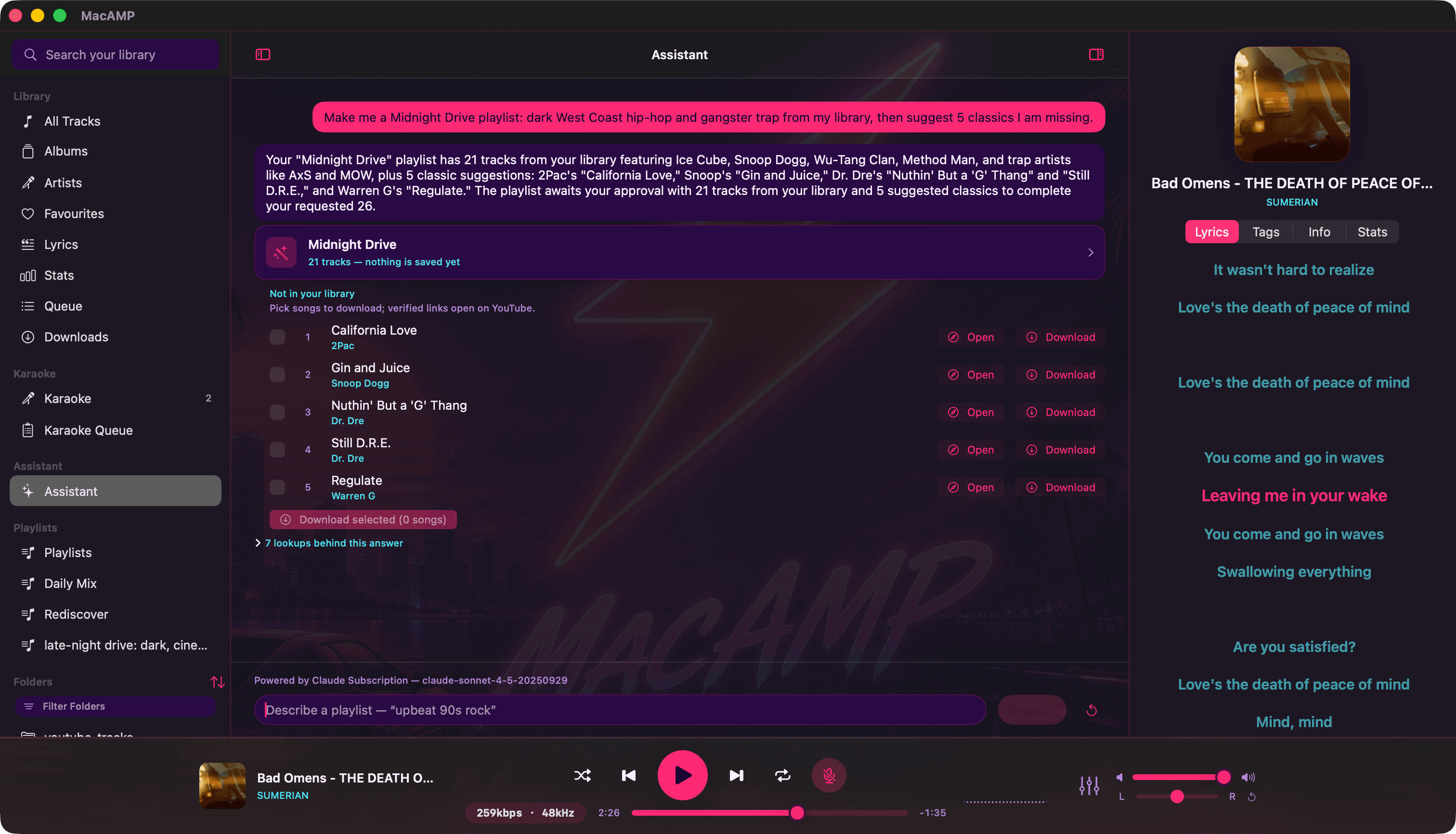
Most “AI DJs” recommend from a streaming catalogue and hope you have a subscription. MacAMP turns that around. Before the model suggests a single song, it reads your genre list, searches your tracks and samples what fits. The playlist it hands back is built from files already sitting on your drive.
You can watch it happen. Every lookup shows up as a small line above the answer: Read your genre list, 21 results. Searched your library, 14 results. Click lookups behind this answer and you’ll see exactly what it asked for. No black box.
- library tools the assistant can use
- 10
- file paths ever sent to a model
- 0
- of changes reviewed by you first
- 100%
From a sentence to a saved playlist
- Ask for something. Plain language is fine: a mood, a genre, a decade, “songs like this one”, “something for cleaning the flat on a Sunday”. You can keep chatting to refine it.
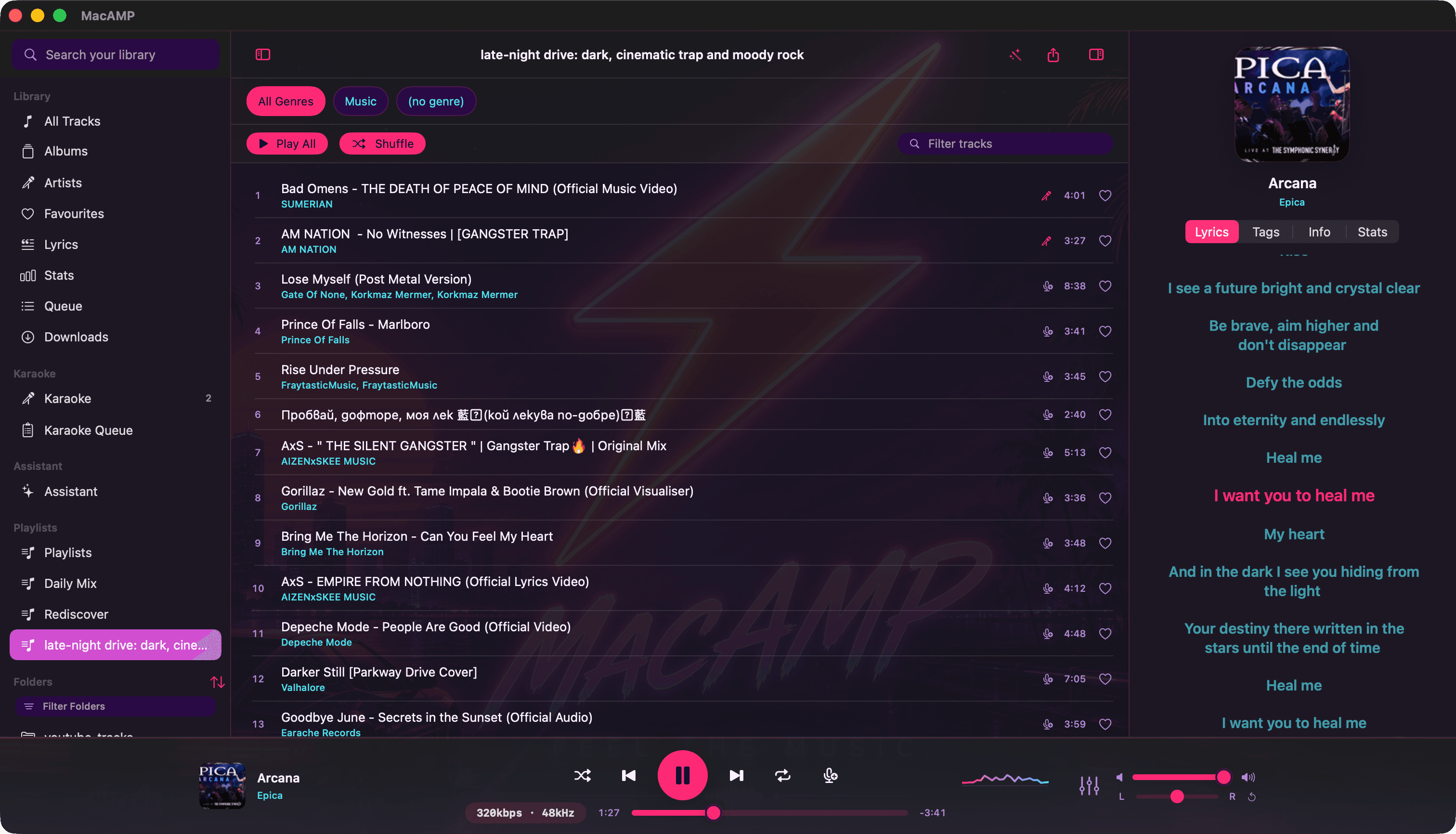
- Read the proposal. The assistant answers with a card that says how many tracks it picked and, in small print, nothing is saved yet.
- Review before saving. Open the card to see every track with a checkbox. Untick anything you don’t want, then press Apply. The playlist appears in your sidebar. Press Discard and it never existed.
Filling the gaps from YouTube
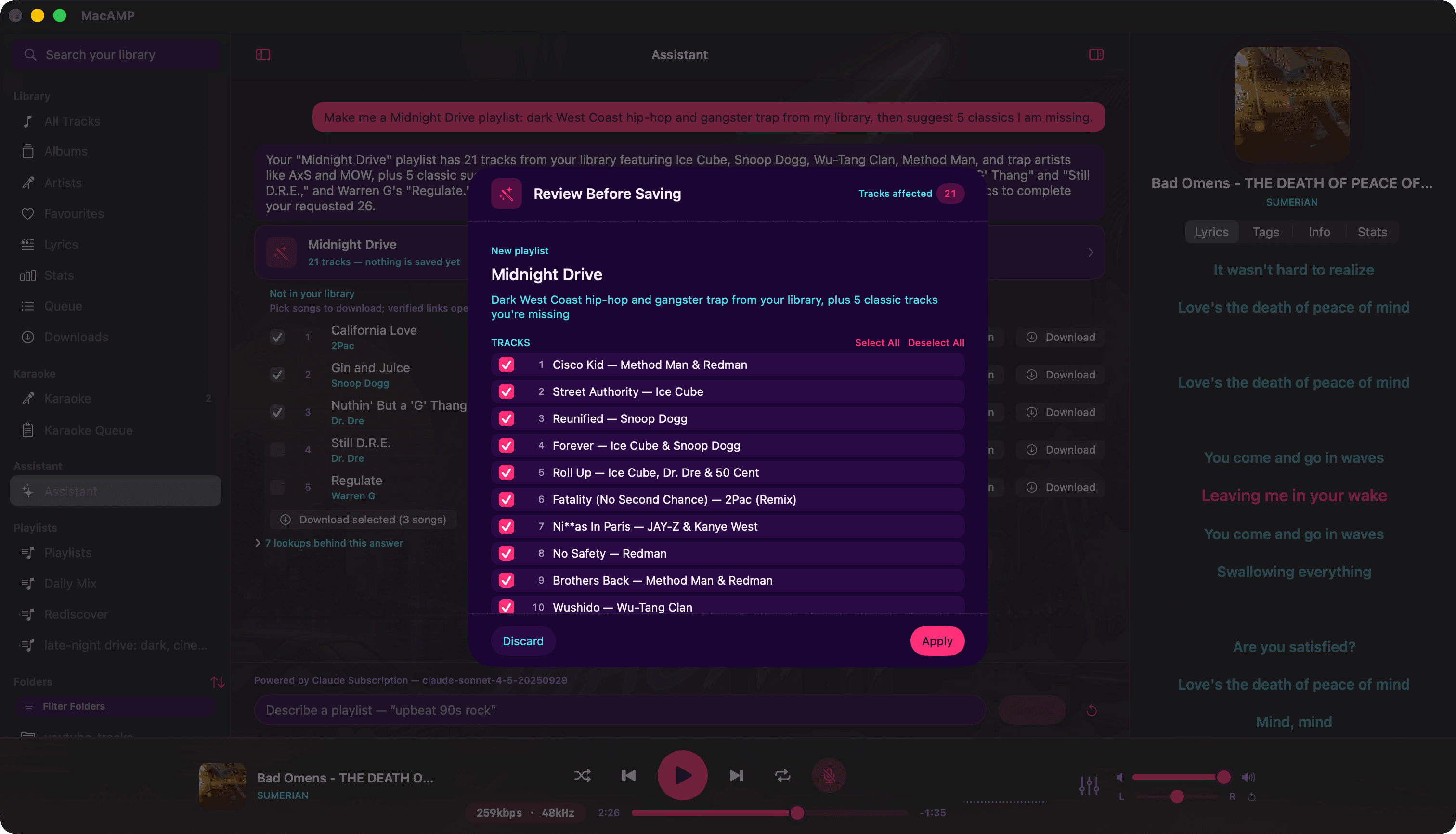
This is the part people tend to love. Ask for “five synthwave classics I’m missing” and the assistant names them, then MacAMP goes looking for each one on YouTube.
Songs come back in a Not in your library list, and each row tells you how confident MacAMP is:
| Row | What it means |
|---|---|
| Open (play icon) | MacAMP found a YouTube video, confirmed it exists and can be played, and checked that its title really matches the song. |
| Search (arrow, tagged search) | No video passed the check. The link opens a YouTube search for the title and artist instead. |
A verified match means a matching video, not necessarily the official upload. A live take or a lyric video can pass. MacAMP never pretends otherwise.
One click to download, straight into the playlist
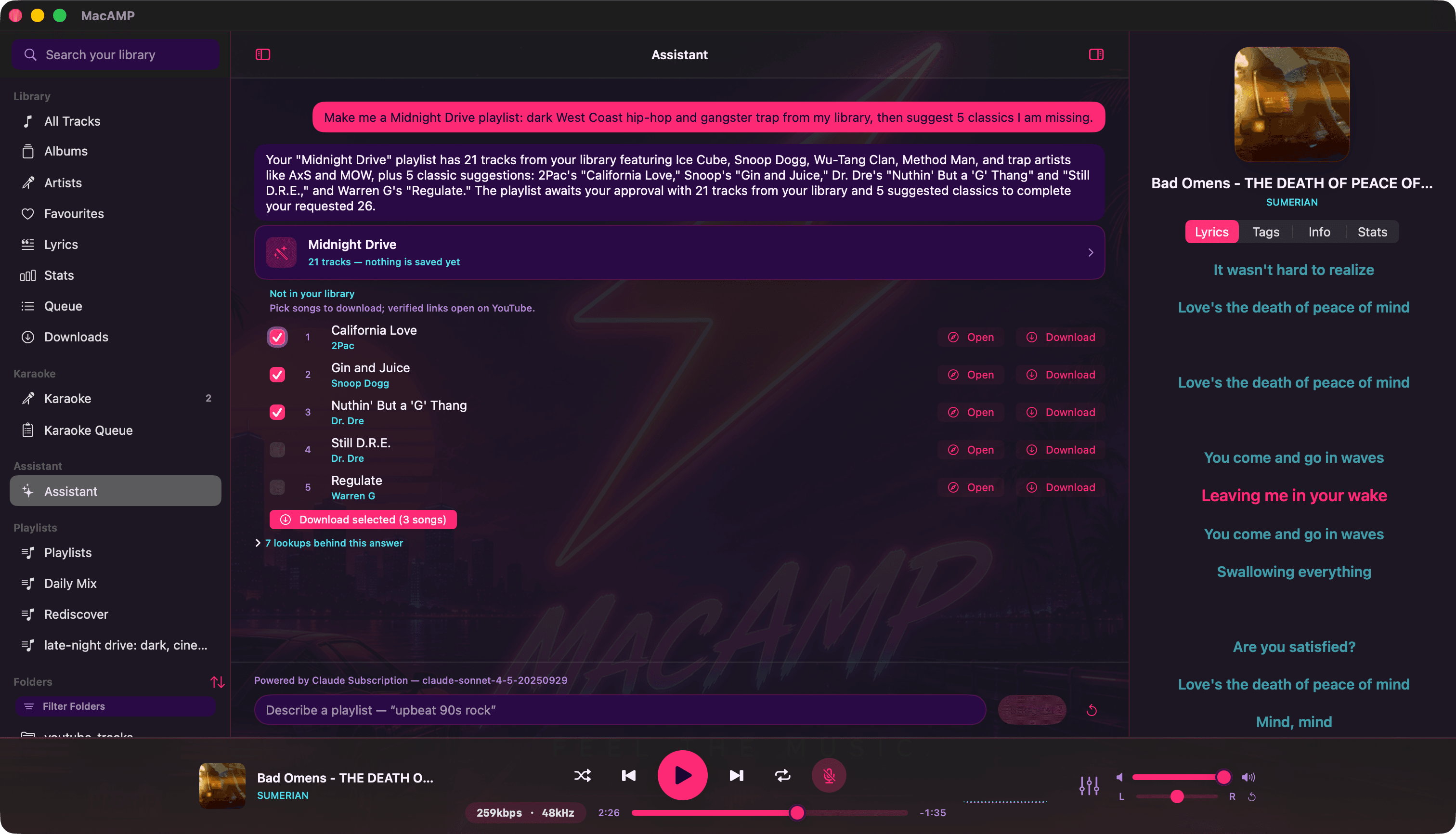
Tick the songs you want and press Download selected. They join the same download queue you’d use for pasted links, and each row updates in place: queued, downloading, converting, added.
If your request named a playlist (“add some jazz I don’t have to Late Night”), finished downloads are appended to that playlist automatically and a toast tells you how many landed. Rows with only a search link aren’t a dead end either. MacAMP looks them up at download time and only queues a song when it finds a confident match.
Pick the brain behind it
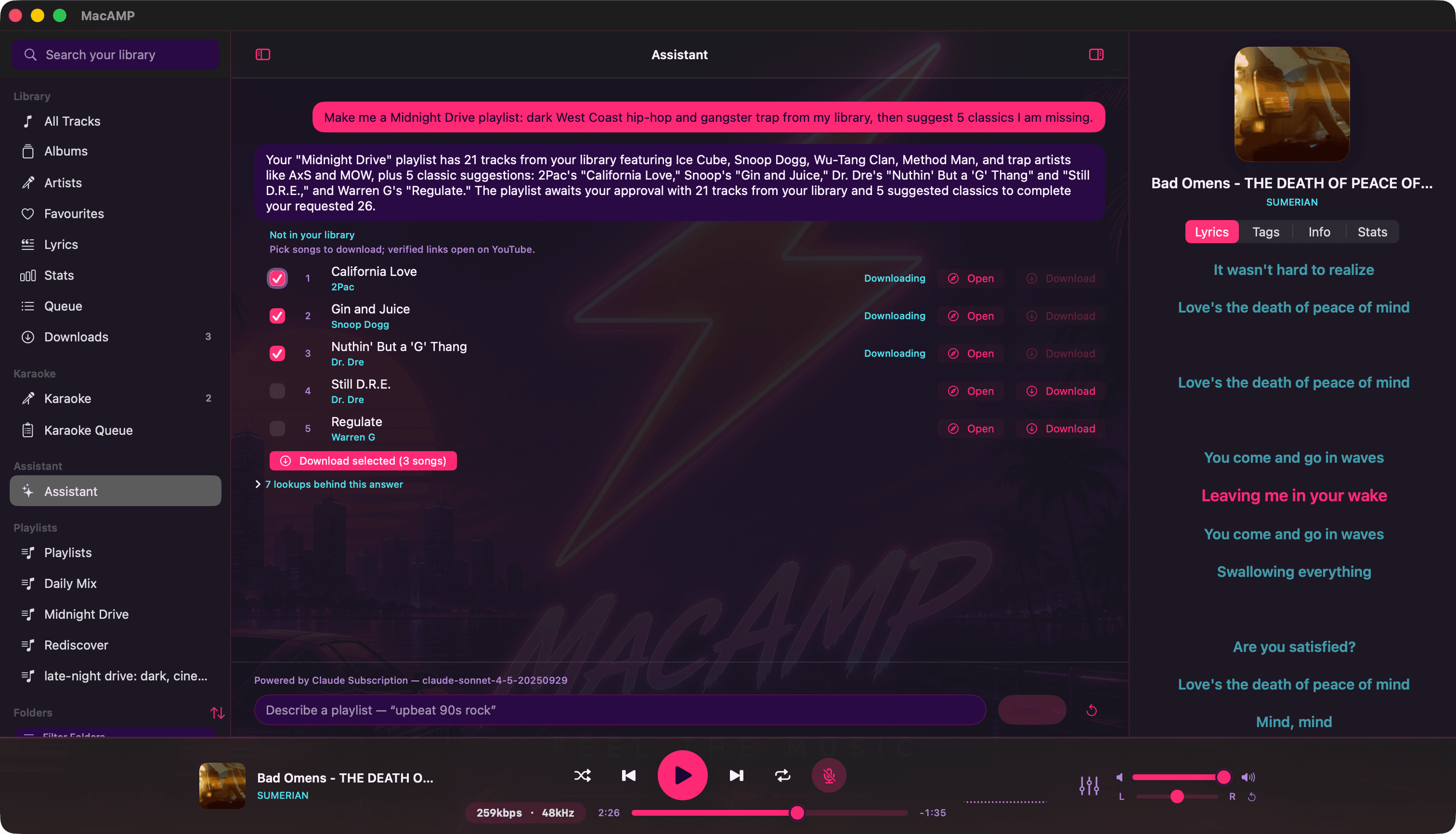
The assistant works with whichever model you trust. You can switch any time in Settings › Intelligence, and the chat footer always shows which provider and model answered.
| Provider | What you need |
|---|---|
| Ollama | A running Ollama server. Run it locally and nothing leaves your Mac at all. |
| Claude | Your existing Claude Pro or Max plan, or an Anthropic API key. |
| ChatGPT | Your ChatGPT subscription, or an OpenAI API key. |
Keys live in your macOS Keychain, never in a preferences file. Subscription sign-ins use the provider’s own login page.
What the model can and can’t see
When a cloud provider is answering, it can ask about track titles, artists, albums, genres, years, tempo and energy, your playlists and a summary of your listening stats. Before the first chat with any provider, MacAMP shows you exactly that list and asks.
Web suggestions are a separate opt-in. When they’re on, only the titles and artists of songs not in your library go out to find a link. Your files, playlists and history stay home.
It can drive the player, too
Say “play this”, “skip”, “pause” or “what’s playing?” and the assistant does it on the spot. If you’d rather it only looks things up, switch off Playback Control and it becomes read-only. It can never change your settings, themes or EQ.
More than a chat box
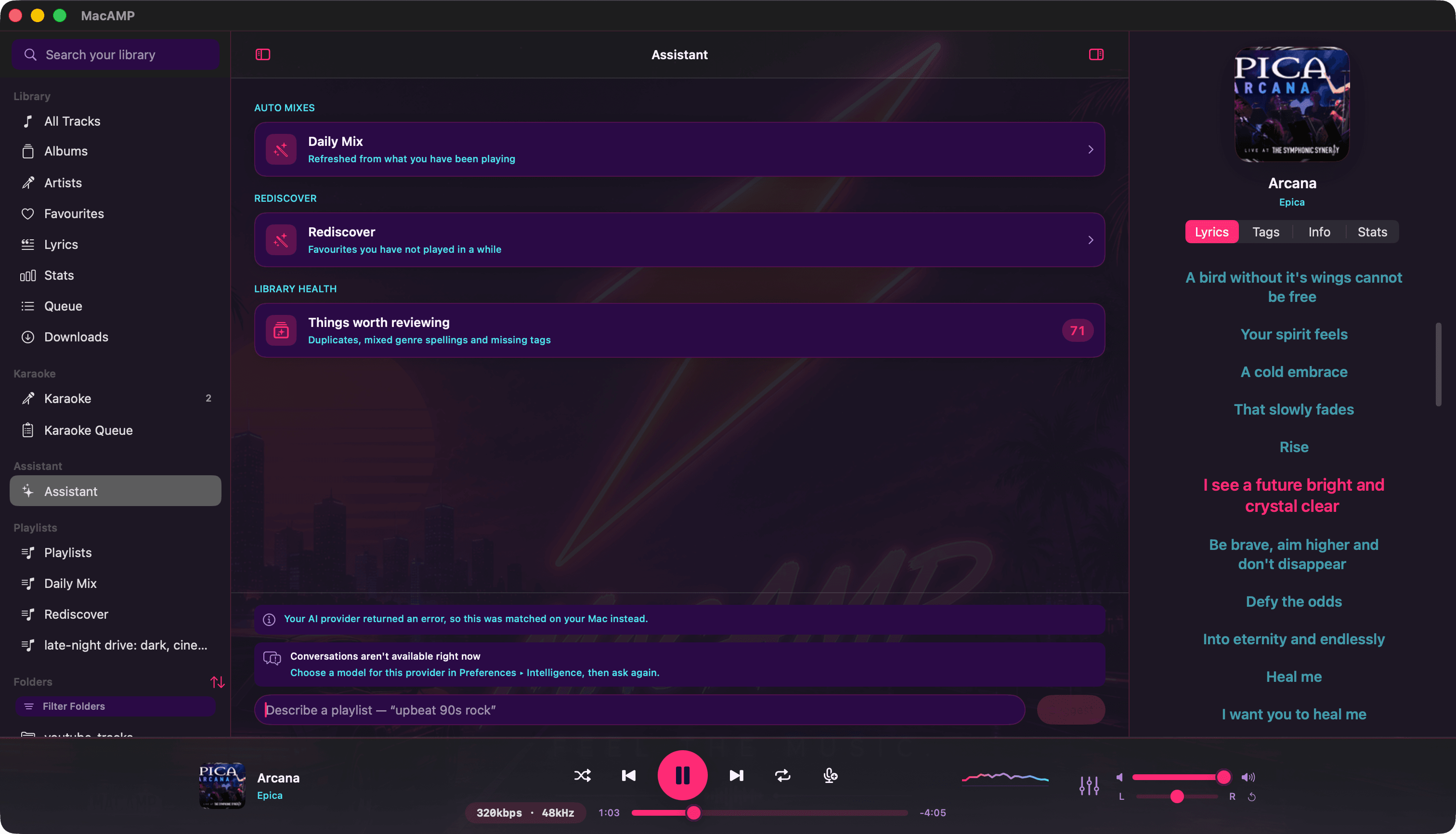
- Daily Mix refreshes from what you’ve actually been playing.
- Rediscover surfaces favourites you haven’t touched in a while. Surprise Me (the dice in the toolbar) does the same in one click.
- More Like This builds a playlist from any track. Right-click it.
- Organize a playlist: suggest a name, reorder it by energy, split it by theme or remove duplicates.
- Library Health finds duplicate entries, genres spelled three different ways and tracks missing an artist or album, then proposes fixes you can review.
- Listening Insights turns your stats into a short, readable summary.
Bring your own tools
Already running MCP servers for other things? Add them under Settings › Intelligence › MCP Servers and the assistant can use their tools alongside its own when a cloud model is answering. It also works the other way around: MacAMP has its own MCP server so other AI apps can browse your library.