
What each profile keeps to itself
| Kept per profile | Why it matters |
|---|---|
| Library folders | Your folders are yours. A profile only sees the music it was given. |
| Playlists | No more finding “Kids Party Mix” at the top of your sidebar. |
| Favourites and play counts | Hearts and counters belong to whoever pressed play. |
| Listening stats and heatmaps | Your stats stay about you. |
| Playback state | Each profile resumes at its own track and position. |
Switching
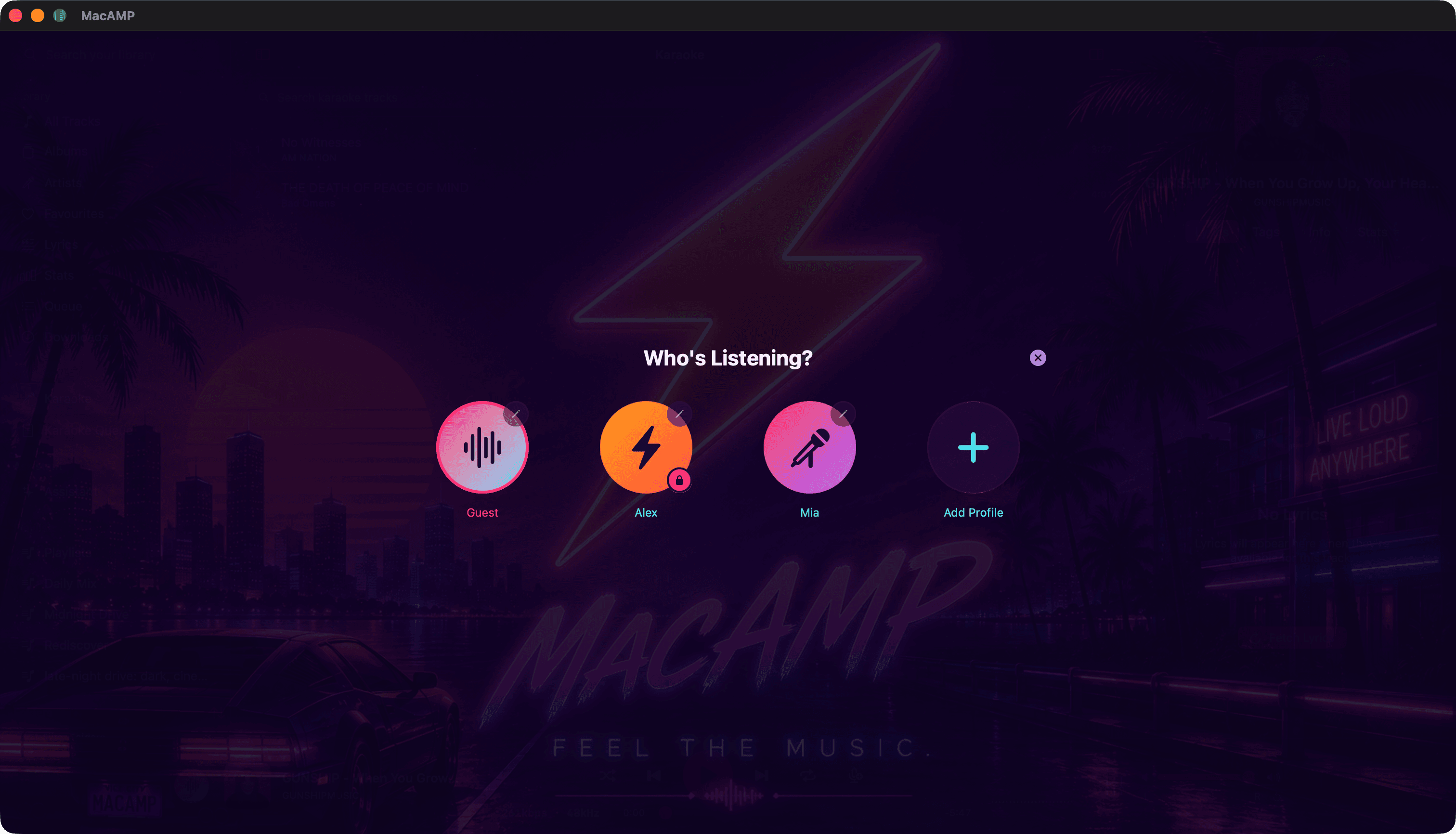
Click the avatar beside the player bar and the Who’s Listening? screen appears, a bit like picking a profile on a streaming service, but local and offline. Choose someone and MacAMP swaps the library, playlists and queue in place.
Setting up a profile
- Turn on Enable Profiles in Settings › Profiles. Until then, MacAMP behaves like a single built-in Guest profile.
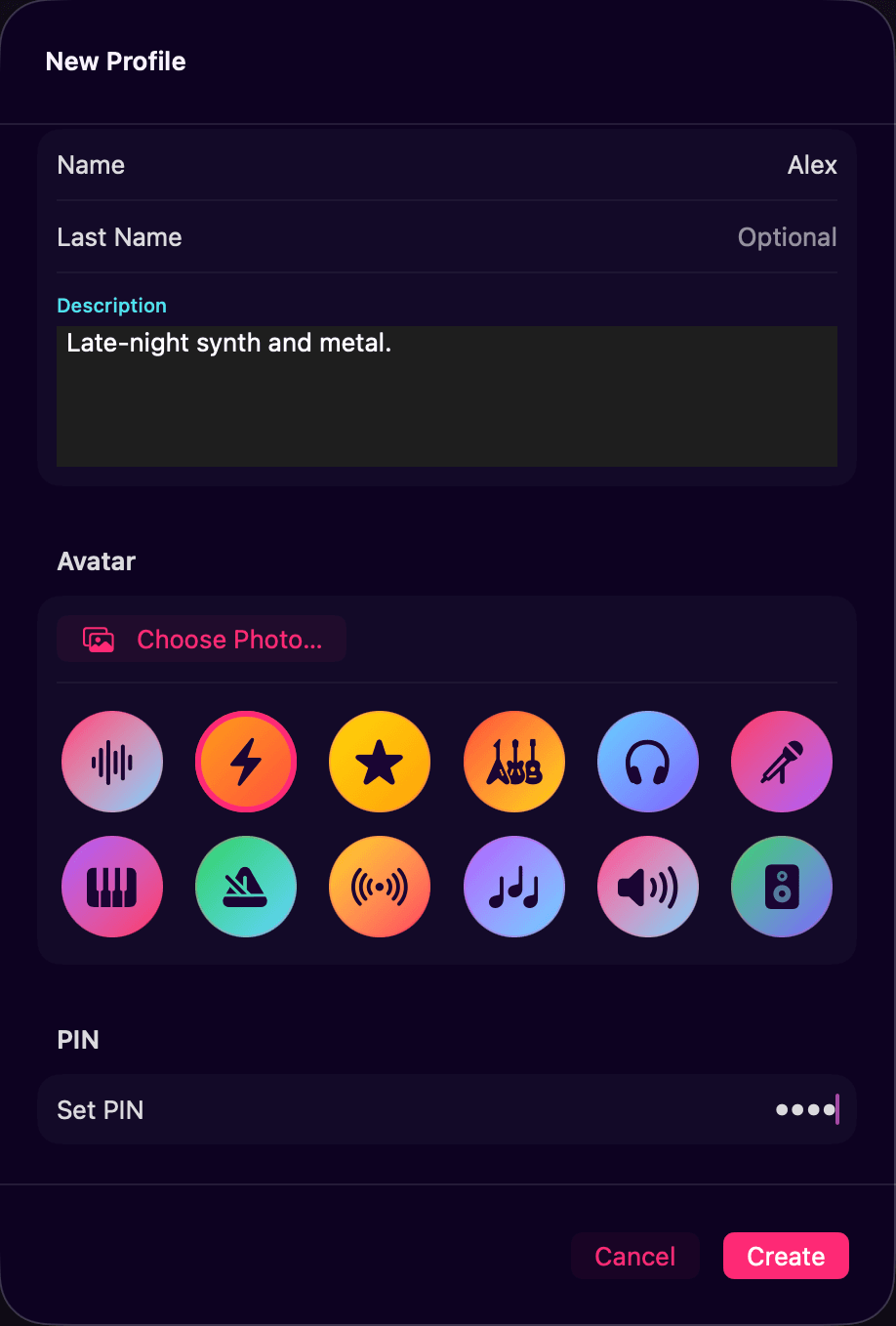
- Click Add Profile, give it a name and an optional description.
- Pick one of twelve neon avatars or choose your own photo.
- Add a PIN if you’d like one, then press Create.
The PIN
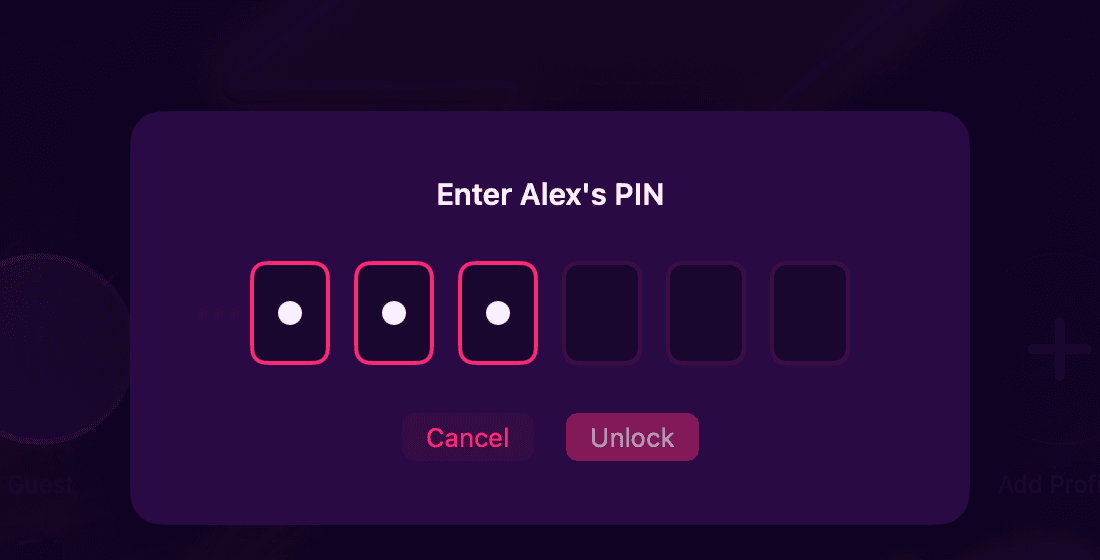
A PIN is 4 to 6 letters or digits. Once it’s set, switching to that profile, or editing it, asks for it first. Profiles with a PIN wear a small lock badge in the picker.
Moving to a new Mac
Export a profile as a .macampprofile file from Settings › Profiles and import it on the other machine. It carries the profile’s plays, heatmaps, favourites and play counts, plus settings and EQ presets if you choose to include them. Importing always creates a new profile and never overwrites one.
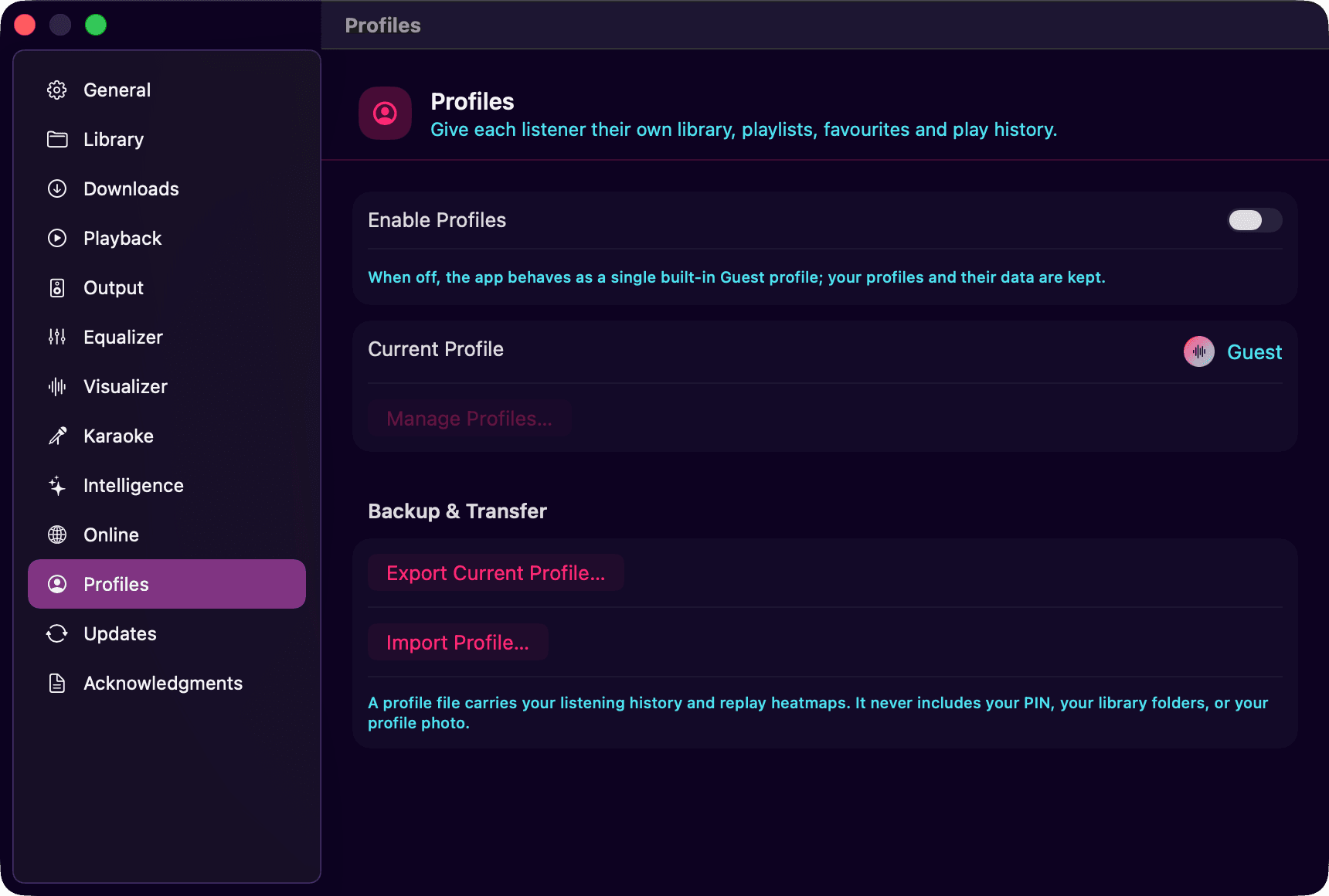
Exports never include the PIN, your library folders or your profile photo.