
How it works
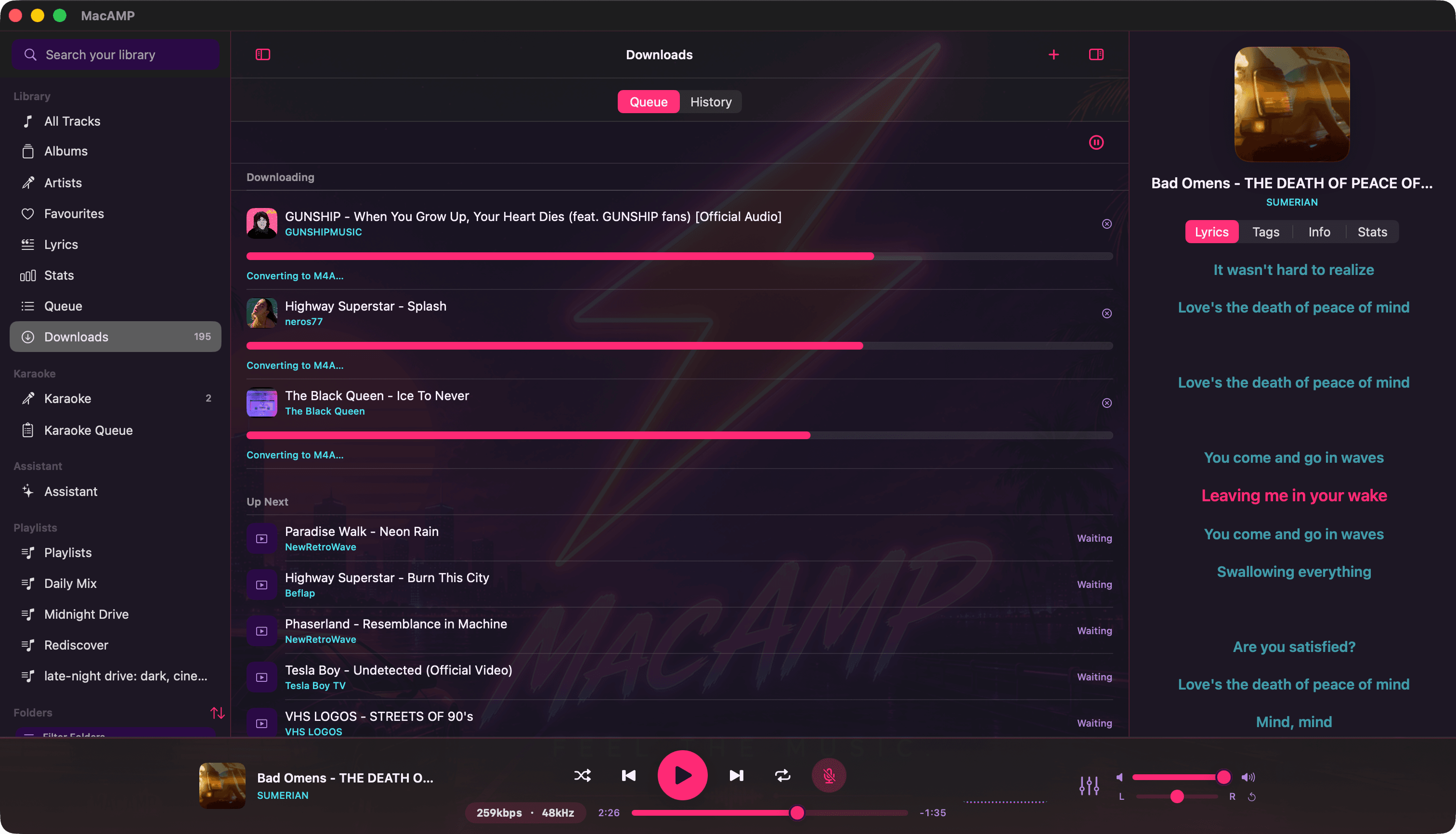
- Open Downloads in the sidebar and press +, or choose File › Add Download.
- Paste your links, one per line. Single videos, Shorts and playlist links can be mixed in the same paste.
- Press Add. Tracks show up in the queue right away. Titles, channel names and thumbnails fill in a moment later.
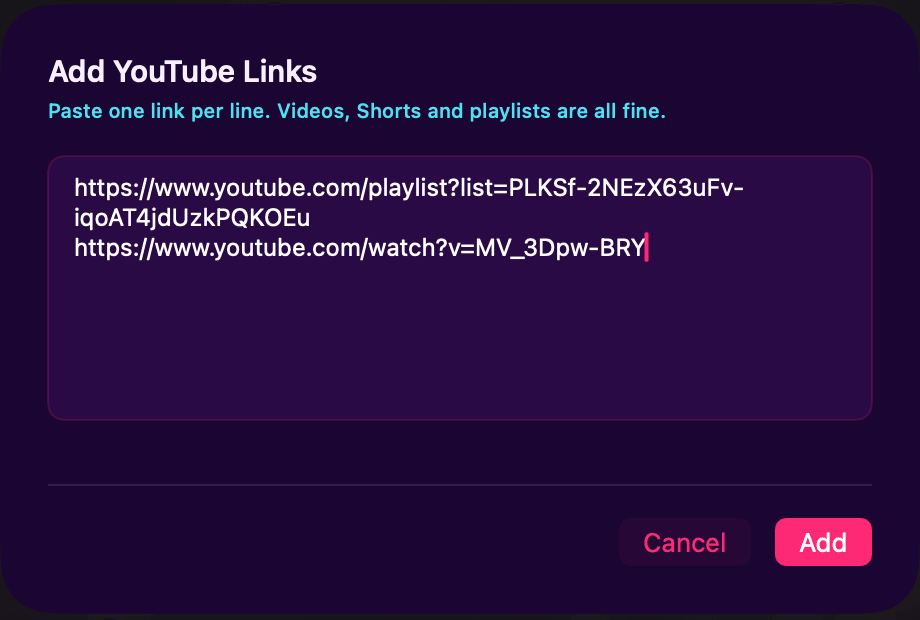
MacAMP cleans up the paste for you. Duplicates are dropped, links it can’t read are skipped, and the same video showing up in two playlists only downloads once. If you’ve grabbed something before, you’ll get a gentle “you already downloaded 2 of these”. It’s a heads-up, not a block.
Whole playlists, no surprises
Paste a playlist and MacAMP counts what’s actually in it before anything is queued. You’ll see the real number and decide: add them all, or skip the playlist and keep the rest of your paste.
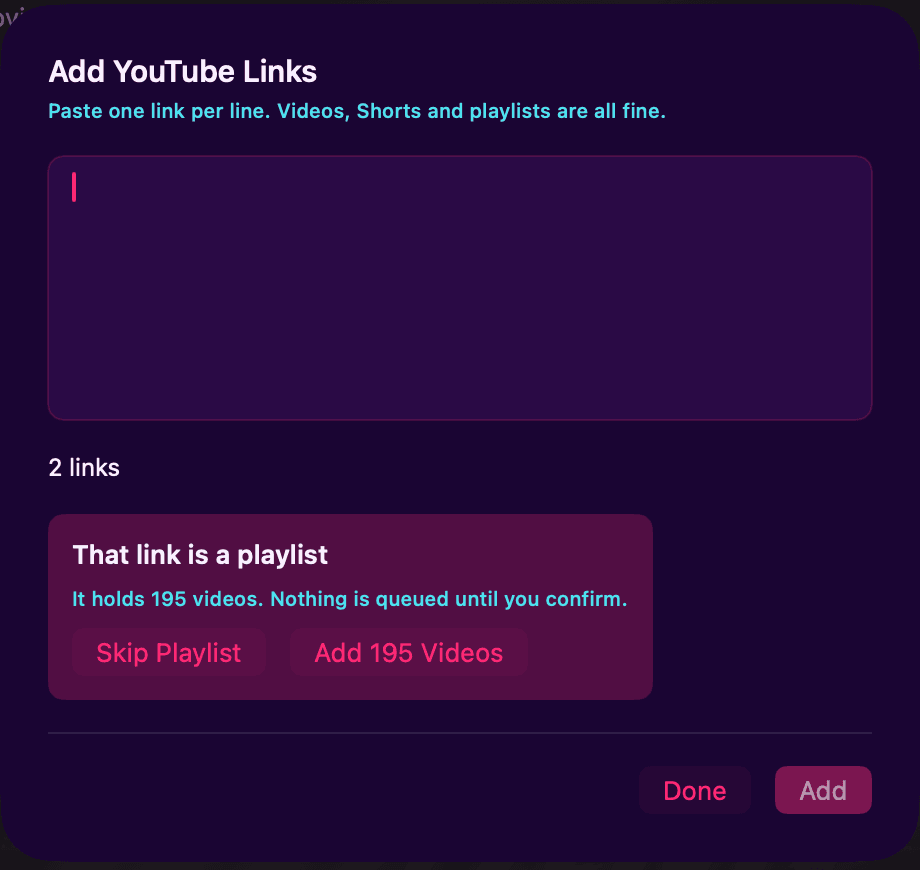
Playlists are capped at 500 tracks. If one is longer, MacAMP offers the first 500 and says so plainly. It never trims a list behind your back.
- downloads running at once
- 1–4
- tracks per playlist link
- 500
- output formats
- 4
The queue
Active downloads run side by side, three by default, with a real progress bar for both the download and the conversion step. Waiting tracks sit underneath. Drag them to reorder, right-click to remove one, or pause the whole queue and come back later. Each active row has its own cancel button, so stopping one doesn’t stop the rest.
The History tab keeps every finished download with its format and quality. Reveal the file in Finder, re-download it, or clear the list. Clearing history never touches the files.
Format and quality
| Format | Quality | Good to know |
|---|---|---|
| M4A (AAC) | Best, High, Medium | The default. Plays everywhere. |
| MP3 | Best, High, Medium | For older players and car stereos. |
| Opus | Best, High, Medium | When YouTube already serves Opus, MacAMP copies it as-is with no re-encode. |
| FLAC | Lossless | Always lossless, so there’s nothing to pick. |
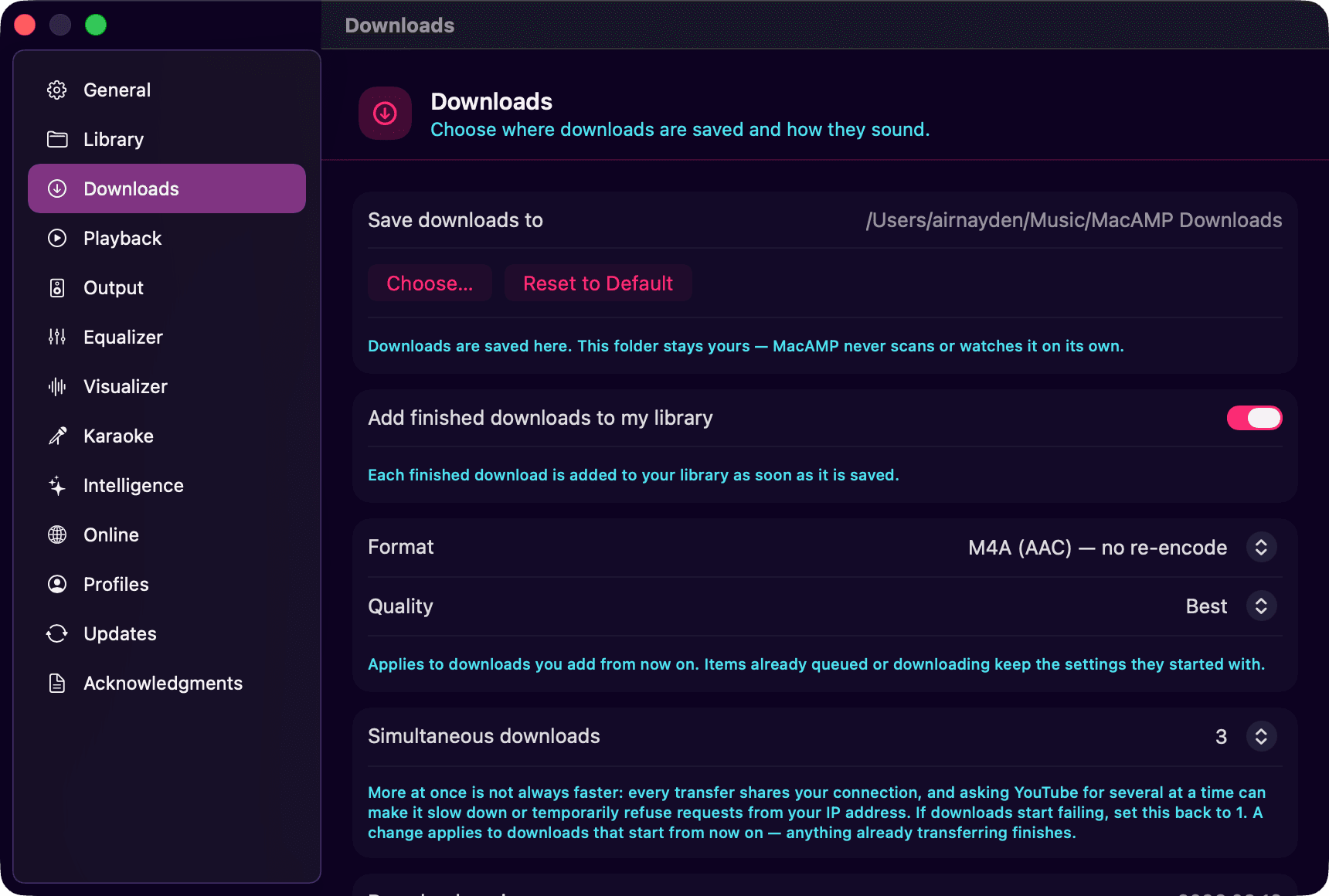
Changing the format only affects downloads you add afterwards. Anything already queued finishes the way it started.
Where the files go
Downloads land in ~/Music/MacAMP Downloads unless you pick another folder. That folder stays yours: MacAMP won’t scan it on its own.
To have new downloads show up in your library straight away, turn on Add finished downloads to my library. Each file is imported the moment it’s saved. Prefer to keep them separate? Leave it off and add the folder to your library whenever you like.
Engine updates
The download engine updates itself. Every update is checked against a SHA-256 checksum and rolled back automatically if anything looks off. Updates wait politely until no downloads are running.
A word on fair use
Only download audio you have the right to download, and respect the terms of the sites you use. MacAMP is a tool. What you point it at is up to you.